
Early preview Tray app for Claude Code Windows 10 & 11 Free
Which of your nine Claude Code sessions is waiting on you?
Session Captain keeps one live list of every Claude Code session on your PC, sorted by who needs you. It tells you when one finishes or stalls on a prompt, and one click puts you in the right terminal tab.

- Claude has a question. Answer it here.
- Needs you goes to the top.
- Working, and for how long.
- Finished while you were in another tab.
- The tab you’re in. Its cache goes cold in 5 min.
- Your 7-day usage and pace.
Terminal tabs can’t tell you who’s waiting.
Run a few Claude Code sessions side by side and work starts slipping between tabs. One finished ten minutes ago. Another has been sitting on a permission prompt since you went for coffee. The only way to find out is to click through all of them.
PS D:\code\mobile-app> claude
…
● The crash came from a null insets listener. Fixed and covered by a test.
>
9 tabs1 stuck on “Allow this command?”1 finished 3 min agoNo way to tell from here
Six states, readable from across the room.
Session Captain listens to Claude Code’s own hook events, so a status changes the moment the session’s does. It doesn’t scrape your terminal or guess from screen output.
The tray icon takes the colour of the most urgent session. When one finishes or needs you, a Windows notification says which; click it and you’re in that session’s tab. A session you closed opens again in a new one.
- Needs you
- A permission prompt or a question is waiting for you.
- Working
- Claude is mid-turn. The clock shows for how long.
- Waiting on subagents
- The turn ended, but background agents are still running.
- Finished, unseen
- Done while you were elsewhere. Stays lit until you look.
- Idle
- Done, and you’ve seen it. Ready for the next prompt.
- ↺Not running
- The process is gone. Click it to resume in a new tab.
Sort by status, by when each one finished, or by when you last looked at it. Press / or just start typing to search.
Questions and permissions
Answer Claude without going to find it.
When a session wants to run a command, the request shows up in a small window that stays on top of whatever you’re doing, with the command spelled out. Allow, Deny, or hand it back to the terminal. A and D work from the keyboard.
Turn on agent questions and your sessions can ask you things directly. The question arrives with its options; pick one or type a reply and it goes straight back into the session. Ignore it and nothing breaks: the terminal is still there.


Quick menu
CtrlAltQ from anywhere.
A small menu opens under your mouse pointer with every session, in the same order as the deck. The tab you’re in is marked. Press 1–9 to jump, or type to filter by title, project, branch or folder. Esc closes it.
It’s the fastest way to get from “something finished” to looking at it.

Cost, context and cache
What each session has cost, and how long its cache has left.
Switch on the status-line reader and every row shows the session’s total tokens and its cost at API prices, with a thin line under it for how full the context is. Each row also counts down to the moment its prompt cache goes cold: cyan while there’s time, amber, then red.
Keep caches warm
Coming back to a cold cache means paying to re-read the whole conversation. With this on, when an idle session has about six minutes of cache left and its tab isn’t in front, Session Captain types a short wake prompt into it. Once per expiry, never into the session you’re looking at.


Close a tab, reboot, come back next week. Nothing goes missing.
Sessions are cheap to start and easy to lose. The deck keeps track of the ones you’re not looking at.
- Recently closed
- Closed a tab by mistake? It’s listed with its title and folder. Click to resume it in a new tab.
- After a restart
- Sessions that were open when Windows went down come back as a group. Reopen the whole terminal window, tabs and all.
- All history
- Search every past Claude Code session on this PC by title, folder or what you asked, and pick it up again.
- Pinned
- The sessions you go back to every day, always in the same place, running or not.
- Later
- Park work that’s still open but not on your mind, so the main list stays short.
- New session here
- Right-click any session to start a fresh, named one in the same folder, or fork the conversation and try another direction.
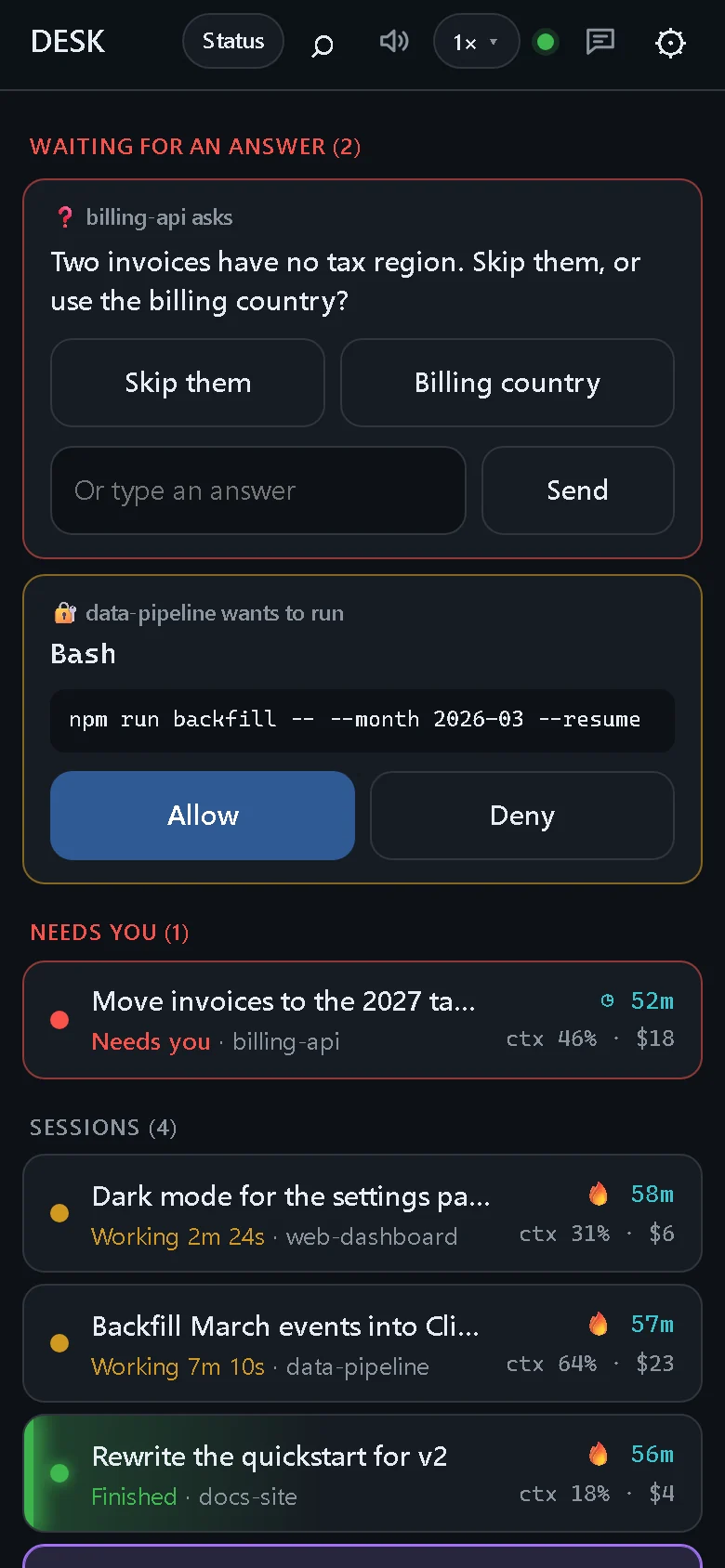
Session Captain for Android
Step away from the desk. Keep the list.
The phone app shows the same sessions, sorted the same way. Get an alert when one needs you, read the conversation, reply, answer Claude’s questions, allow or deny a command, or open the session on your PC. Replies can be read aloud.
- Pair once. Scan a QR code shown on the PC, then click Allow there.
- Stays on your network. The phone talks to your PC directly; phone access is off until you turn it on.
- Locked down. TLS 1.3 with the PC’s certificate pinned at pairing. Replies and approvals need your fingerprint.
- Updates itself. Once paired, the app gets new versions from your PC whenever you update Session Captain.
It isn’t on Google Play, so on first install Android asks you to allow installs from this source (your browser or file manager). Allow it once; later updates come from your PC.
Got a second computer? Pair a laptop the same way, with a pasted code instead of a QR code, and follow and answer your main PC’s sessions in a window, with Windows Hello confirming replies.
Three steps, then back to work.
No account, no sign-in, no config file to write by hand.
-
Install
Run the installer and get past SmartScreen (More info, Run anyway). Session Captain starts in the tray.
-
Allow the hooks
On first run it asks before it changes anything. Say yes and it adds its hooks to
~/.claude/settings.json, after backing the file up. -
Work as usual
Start
claudein any terminal. New sessions appear in the deck straight away; ones already open show up after their next restart.
// One entry per event, all running the same small script. Your own hooks stay as they are.
"hooks": {
  "SessionStart": [{ "hooks": [{
    "type": "command",
    "command": "powershell.exe -NoProfile -ExecutionPolicy Bypass -File \"C:/Users/you/…/session-captain-hook.ps1\"",
    "timeout": 10
  }]}],
  "UserPromptSubmit": [ …same command… ],
  "Notification":     [ …same, with "matcher": "permission_prompt|idle_prompt|elicitation_dialog" ],
  "Stop", "SubagentStart", "SubagentStop", "SessionEnd": [ …same command… ],
  "PermissionRequest": [ …only while “Take over permission prompts” is on… ]
}
No PreToolUse or PostToolUse hooks, so nothing is added to the path of every tool call. The script copies the event to a local folder and always exits cleanly. Uninstall hooks removes exactly these entries.
Questions people ask first.
Is it safe to install?
Session Captain has no account, no analytics and no telemetry. The installer isn’t signed with a code-signing certificate yet, which is the only reason Windows warns you about it.
Every release publishes its SHA-256 in latest.json, so you can check the file you downloaded with Get-FileHash session-captain-setup.exe. The current installer’s is .
Why does Windows say “Windows protected your PC”?
That’s SmartScreen, which flags installers from publishers it hasn’t seen sign many apps. Click More info, check the file name says session-captain-setup.exe, then click Run anyway. You only see it once per installer.
What exactly does it change in ~/.claude/settings.json?
Only what you agree to, and only after it has saved a backup next to the file (it keeps the last three). Writes are atomic, other entries are left alone, and if the file doesn’t parse it stops and tells you rather than overwrite it.
- Hooks: one entry each for
SessionStart,UserPromptSubmit,Notification,Stop,SubagentStart,SubagentStopandSessionEnd, plusPermissionRequestwhile it handles permission prompts for you. - Status line (optional): it puts itself in front of your existing
statusLine.commandwith a pipe, so your status line looks exactly as before. Turning it off puts your old command back. - Agent questions (optional): registers a local MCP server with
claude mcp add --scope userand copies a small skill to~/.claude/skills/session-captain/.
Does anything leave my machine?
Your sessions don’t. Hook events are written to a folder on your PC. The question server listens on 127.0.0.1 only and rejects requests without its token. The phone link, if you turn it on, stays on your own network and is encrypted.
The one request to the internet is the update check: the app reads latest.json from download.sessioncaptain.com a minute after it starts and every six hours. Nothing about you or your sessions is sent.
What do I need?
- Windows 10 or 11, 64-bit.
- Claude Code, the command-line version, run from any terminal.
- Windows Terminal, if you want a click to take you to the session’s tab.
- For the phone app: Android 10 or later, on the same network as your PC (or connected to it over a VPN).
Does it see sessions started from Claude Desktop?
Yes. Sessions from the Desktop app’s Code tab or its scheduled tasks report through the same hooks and carry a Desktop tag. They have no terminal tab, so clicking one resumes it in a new one.
How do updates work?
When a new version is out, a bar appears in the deck. Click Update: Session Captain downloads the installer, checks its size and SHA-256, installs it and starts again. Paired phones then update from the PC.
Mac or Linux?
Not today. Session Captain is built and tested on Windows, and that’s the only download.
How do I remove it?
In Settings, click Uninstall hooks and turn off the status-line reader if you turned it on; both put your settings.json back the way it was. Then uninstall Session Captain from Windows Settings › Apps.
What does it cost?
Nothing. It’s free during the early preview, and there’s no account to make.
Stop checking tabs. Let them report in.
Free during the early preview, for Windows 10 and 11, with an Android companion.